Architecture and Authorization Flow
Architecture and Authorization Flow
Your app communicates with the SmartThings platform in two directions:
- Your app calls SmartThings -- REST API calls to discover devices, read status, send commands, and manage subscriptions.
- SmartThings calls your app -- Webhook callbacks delivering device events and lifecycle notifications.
To fully integrate with the platform, your app should expose two HTTP endpoints. While you can configure the specific URL paths to match your own server architecture, they must fulfill the following purposes:
| Example Endpoint Path | Purpose |
|---|---|
GET /oauth/callback | Receives the OAuth 2.0 authorization code when a user connects their SmartThings account |
POST / | Webhook endpoint that receives lifecycle callbacks (such as API Access App uninstalls) and device events from SmartThings. |
SmartThings API Base URLs
The SmartThings platform uses a single, unified base URL for all API interactions. This includes your OAuth 2.0 operations (authorization and token exchange), as well as all subsequent REST API calls:
| Base URL | Purpose |
|---|---|
| https://api.smartthings.com/v1/ | All API calls (OAuth operations, devices, locations, subscriptions, commands) |
Find the full SmartThings API reference here.
Authentication Flow
The following steps outline the OAuth authentication flow between SmartThings and your OAuth server:
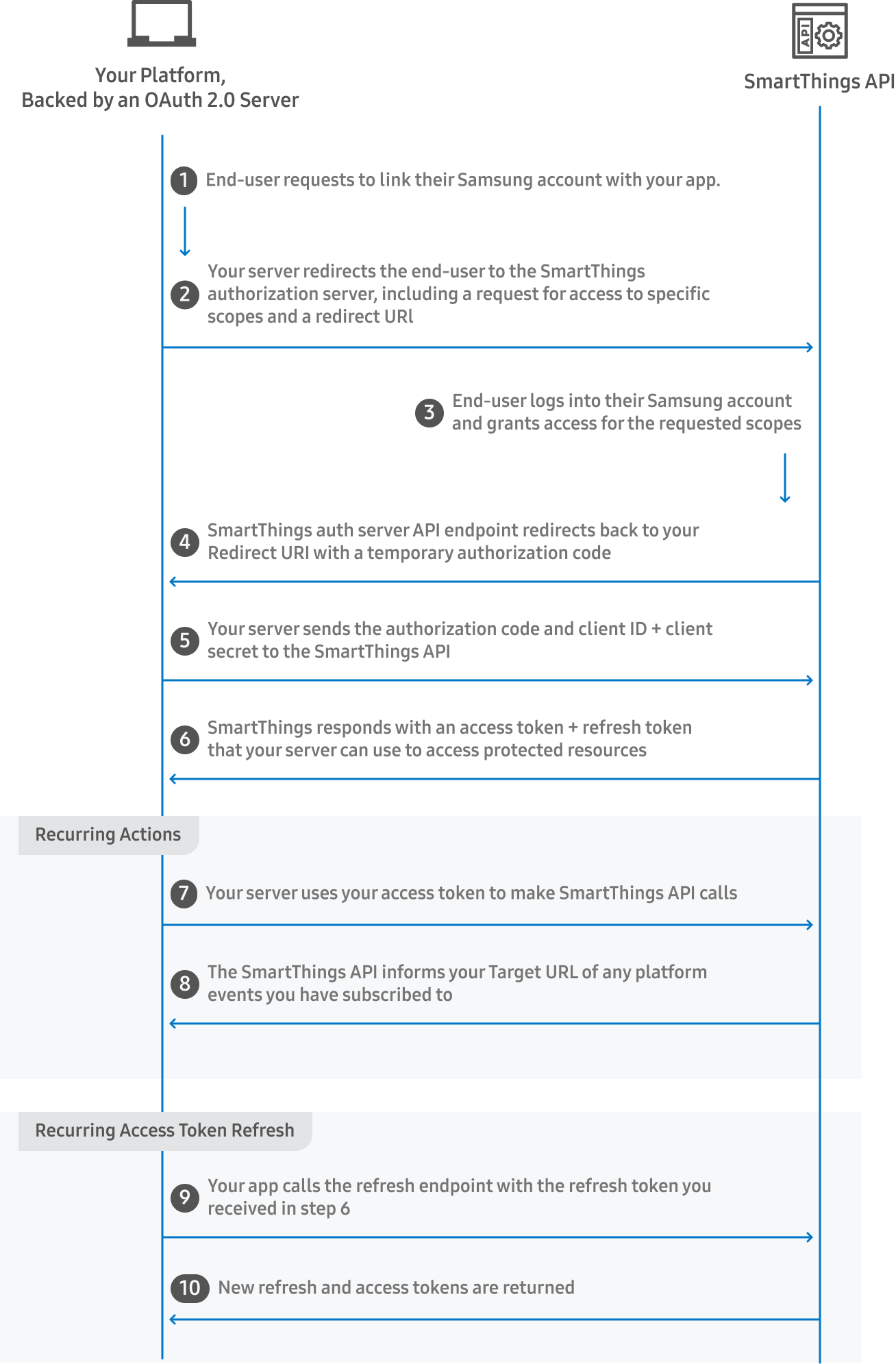
- Initiate Linking: The end-user initiates the OAuth 2.0 flow from your server to link their Samsung account.
- Authorization Request: Your app redirects the end-user to the SmartThings authorization URL, requesting specific scopes. The Redirect URI you provided when creating your SmartApp will direct to your OAuth platform after authenticating.
- User Login: The end-user is presented a login dialog in your app or server to log in to their Samsung account and grant the requested permissions.
- Authorization Code: SmartThings returns a temporary authorization code and redirects the end-user back to your app/server.
- Token Exchange: Your app sends the authorization code, Client ID, and Client Secret to the SmartThings API.
- Obtain Access Tokens: SmartThings responds with access and refresh tokens your server can use to access protected SmartThings resources. Your access token is valid for 24 hours. Your refresh token is valid for 30 days.
- Access Protected Resources: The initial OAuth authorization process is now complete. Use your provided access token to access protected API resources.
- Event Subscriptions: The SmartThings API will inform your server at your specified Target URL of any SmartThings platform or device events you have subscribed to. Subscriptions are sent regardless of access token validity—you must unsubscribe from an event to stop receiving that event.
- Access Token Refresh: Prior to your refresh token expiring, your server may call the refresh endpoint with your refresh token to obtain new access and refresh tokens.
- New Tokens Issued: New refresh and access tokens are returned to your server.
Integration Flow
The following diagram illustrates the flow of HTTP requests between the SmartThings platform and a typical web app that provides the display and control of switches. The example app used in this documentation is available here.
Up Next
Now that you have mapped out the architectural flow of requests between your server and the platform, you are ready to start developing your API Access App.
Visit API Access App Setup to:
- 🎫 Acquire Credentials: Obtain your unique
App ID,Client ID, andClient Secretfrom the SmartThings Console. - 🛡️ Define Scopes: Learn how to configure security boundaries (like
r:devices:*andx:devices:*) for your app. - 🤝 Solve the Webhook Challenge: Understand how to intercept and handle the crucial platform
CONFIRMATIONevent to activate your live webhook connection.