Create Shareable Routines
Shareable Routines empower Works with SmartThings (WWST) partners to create branded, pre-configured automation templates that show users exactly how to get the most out of your devices. By simplifying the automation setup process, you not only improve the user experience but also drive direct commerce.
You have full control over the customer journey: embed your shareable Routine URL in QR codes on packaging, social media campaigns, or directly on your website. With fully customizable purchase links included in your Routine template, you can guide customers from a helpful automation tip directly to your preferred retailer, a specific campaign landing page, or a regional storefront to complete the sale.
Key Benefits:
- Frictionless Onboarding: Users can instantly adopt complex automations via a single URL or QR code.
- Product Spotlight: Curate and recommend up to 10 WWST-certified or Samsung devices within your routine.
- Flexible Commerce: Customize your Routine’s "Buy" button URLs to drive traffic exactly where you want it—whether that's a specific retailer, a holiday campaign, or a localized store.
Your Routine will feature Buy buttons for your recommended products, transforming a practical use case directly into a sales opportunity. It's a powerful tool to demonstrate value, drive engagement, and connect users directly with your products.
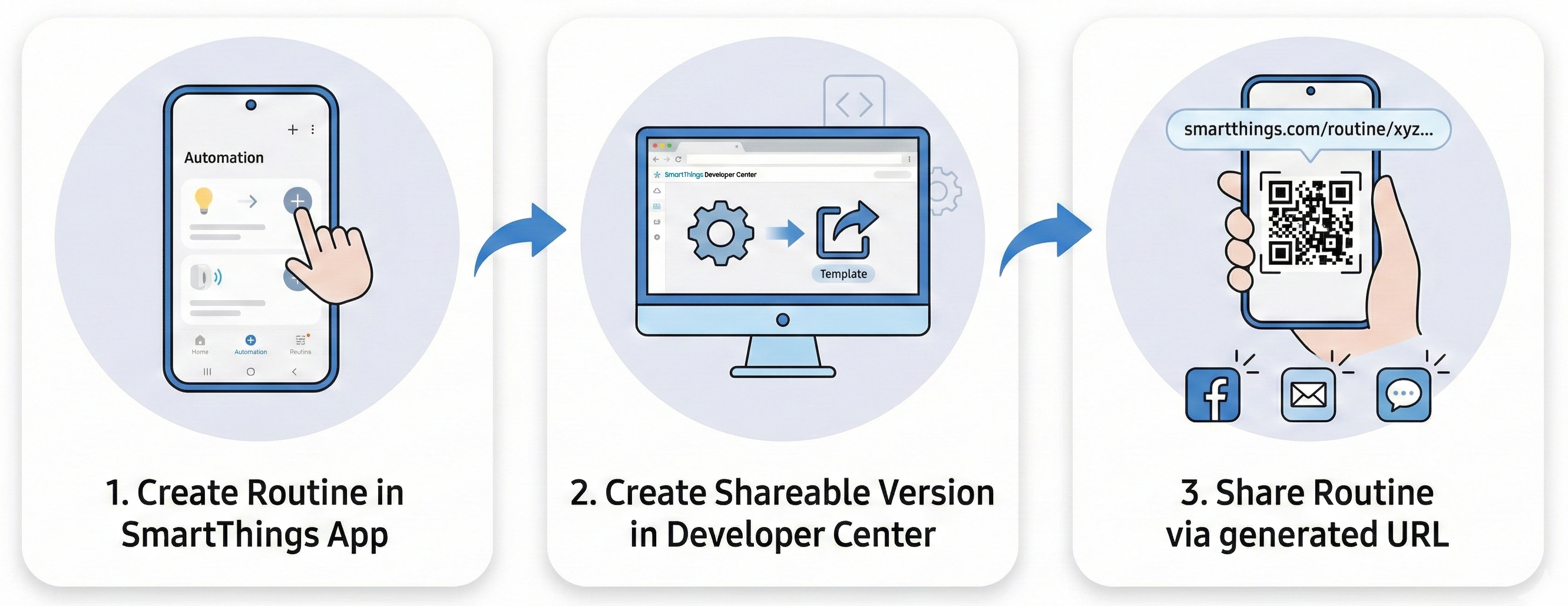
Creating a Shareable Routine involves three easy steps:
Prerequisites
Before creating a Shareable Routine, you will need:
- An approved Works with SmartThings Brand in the Certification Console.
- Access to a Samsung account that is a member of your Brand’s Developer Center Organization.
- The latest version of the SmartThings app installed on your Android or iOS device.
Step 1: Create Your Routine in the SmartThings App
First, create the base Routine in the SmartThings app.
You must create this Routine using a Samsung account that is a member of your Brand's Developer Center Organization. Routines created with other accounts will not appear in the Developer Center.
To create a Routine in the SmartThings app, navigate to the Routines tab in the app and tap + to get started:
- Open the SmartThings app and go to the Routines tab.
- Tap the + icon to start a new Routine.
- Build your Routine as desired. For detailed help, visit the SmartThings support site.

Don’t worry about adding every possible device when creating your Routine in the SmartThings app. When creating the shareable version of your Routine in the next step, you will be able to add any "Suggested Products" that are supported by your selected Routine conditions or actions.
Step 2: Create a Shareable Version of Your Routine in the Developer Center
Your Shareable Routine can feature Samsung and WWST-certified products, even if they are not your own products.
Once your Routine exists in the SmartThings app, you are ready to create a shareable version using the Developer Center.
Get started by visiting the SmartThings Console Routines section. You will see a list of all Routines associated with your Samsung account.
Not seeing an expected Routine? Ensure you are using the same Samsung account in the Developer Center that you used to create your Routine in the SmartThings app. Routines created in the SmartThings app are not shared across members of an Organization.
Select the Routine you want to share, and configure your Routine details:
- Routine Name: Enter the public name for your Routine
- Brand Logo: Select one of your approved Brand Logos that will be displayed to users when viewing your Routine.
- Add recommended products: Select a combination of up to 10 WWST-certified and Samsung products to feature.
(Optional) Assign Custom Product Purchase Links to Your Routine
After selecting a public name and brand logo for your Shareable Routine, you can customize the default product purchase URL for each product. Use this field to direct users to a specific retailer or sales channel, or input a URL containing tracking parameters (e.g., UTMs) to measure engagement and conversion rates.
Custom purchase URLs are bound to the specific Shareable Routine, not the underlying product. Once your Shareable Routine is published, any custom purchase links provided cannot be modified or updated. To change a custom purchase link, you must create and publish a new Shareable Routine.
If you do not specify a custom URL, the default purchase URL provided in each product’s original WWST submission will be used. If a product has a default or custom purchase URL, a Buy link will automatically appear next to the product when users view your Shareable Routine in the SmartThings app.
Step 3: Publish and Share Your Routine
You are responsible for ensuring that your Routine is valid and the supported devices are accurate. SmartThings does not test or validate your Routine before publishing.
Once you’ve given your Routine a name, picked a Brand icon, and added up to 10 recommended products, you’re ready to publish.
Click Save in the Developer Center. A unique URL will be created for your Routine.
Share this link - when users open it, they’ll see your Shareable Routine directly in the SmartThings app. Users can then use their existing compatible device, or see your suggested products (with purchase links).
Delete a Shareable Routine
- Visit the SmartThings Console Routines section.
- Find the Routine and click the Actions icon (...).
- Select “Delete Routine”.
Deleting a Shareable Routine only deactivates the public URL and Shareable Routine template. It does not delete the Routine from your (the author's) app or from any users who have already installed the Routine.