Run and Monitor Your Tests
After your device is onboarded, the Test Suite tests its functionality.
Review Your Test Plan
The Test Suite analyzes your device and creates a test plan for it. Test cases run in the order shown on the page.
Excluding tests: You can exclude specific Capabilities or individual test cases from testing. This is useful during development, when you want to focus on specific parts of your integration.
Capabilities that the Test Suite can't test: Some Capabilities are excluded automatically. They are listed under Not supported in this Test Session, at the bottom of the test plan page, before you select Start test session. You can still submit a device with these Capabilities for WWST certification. SmartThings will review your submission and decide whether additional testing is required.
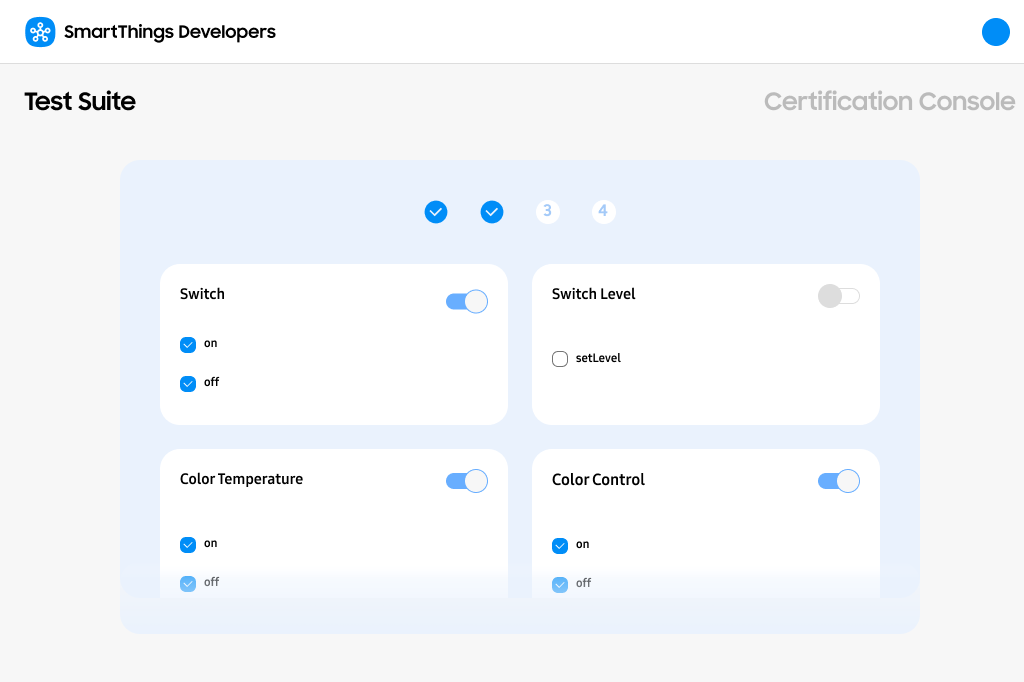
Exclude a Capability or test case only in these cases:
- The test case fails after a very long time, and the failure is caused by a Test Suite deficiency.
- Errors stop the Test Suite from running, and the errors happen on specific test cases that can be excluded.
If you exclude a Capability or test case, explain why in the "Notes for SmartThings Team" field on the Test Summary page.
When you have reviewed the test plan, select Start Test Session.
Keep the SmartThings app open and follow your device's behavior while the test runs. Device changes that a test case triggers, such as a state or setting change, should appear in the app. Checking the app during the test helps you see what happened and why the test case failed.
Types of Test Cases
Your test plan can include three types of test cases:
| Test case type | What you do | Example |
|---|---|---|
| Fully automated | Nothing. The test case runs on its own. Just monitor the progress. | An RGBW light bulb turns on, dims, and changes color. The Test Suite checks that all expected events occur. |
| Manual action | The Test Suite asks you to perform an action within a time limit. | Push a button, trigger motion detection, open a contact sensor, change the temperature, or onboard a second device. |
| User feedback | The Test Suite asks you for information or a confirmation about the test case that was just run. | Confirm whether the device is out of its preset position, or whether a stream or audio is active or stopped. Enter the number of batteries the device reports, or the exact title of the song you are playing on your audio device. |
For manual action and user feedback test cases, you can select Extend to get more time. Whether you can extend, and how many times, depends on the test case.
Monitor Your Test Session
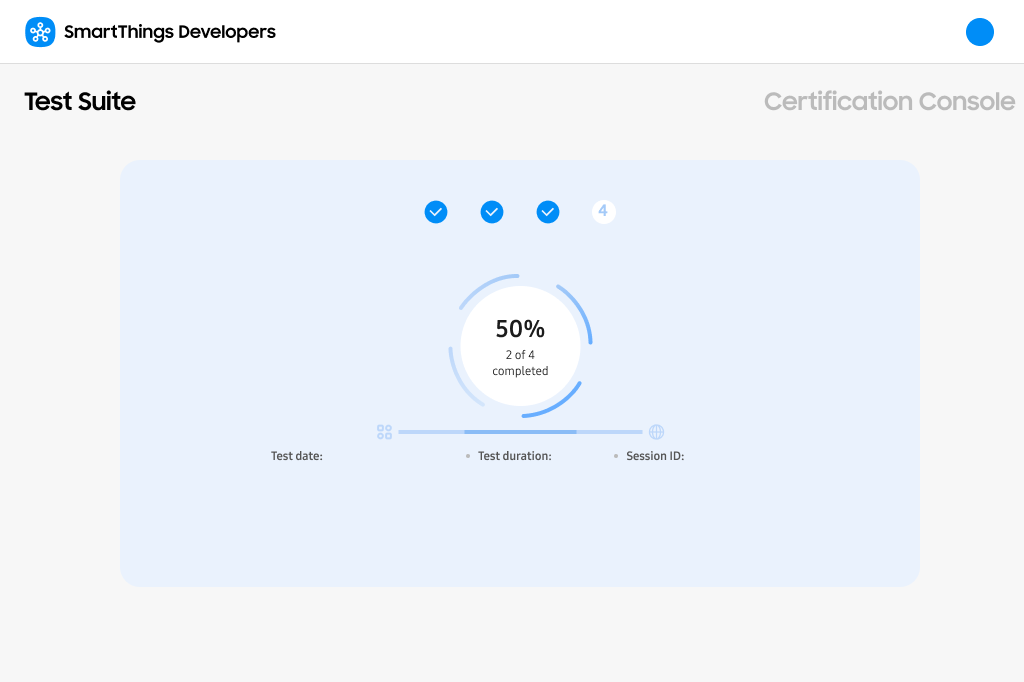
The Test Session in Progress page shows the progress of each test case in real time.
Skipping manual test cases: You can skip manual action and user feedback test cases in the test session. However, for a Full Integration Test, you must complete all test cases, including the manual action and user feedback test cases, for your results to be complete for WWST certification.
Next Step
When all test cases are finished, the Test Suite opens the Test Summary page. Continue with Review Your Test Results.