Review Your Results and Submit for Certification
Review Your Test Results
When all test cases are finished, the Test Suite opens the Test Summary page. It shows an overview of your test session and the result of every test case. On this page, you can:
- View test case details: Check the pass or fail status of each test case and any issues found.
- Download your test report: Download a report with detailed logs for analysis and troubleshooting.
- Add notes for SmartThings: Use the "Notes for SmartThings Team" field, for example to explain why you excluded a Capability or test case from testing.
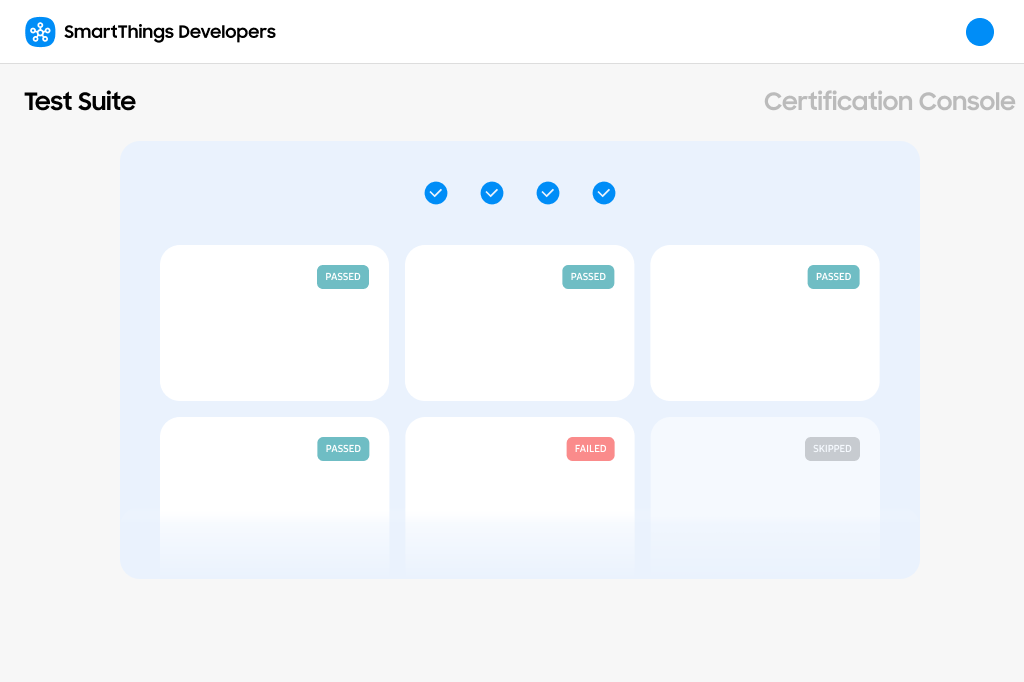
If test cases failed, fix the issues and run a new Full Integration Test. You can use Operational Tests to check individual fixes during development.
If you think your device still qualifies for certification, describe your case in the "Notes to the SmartThings Team" section of your certification request form.
Link Your Test Results to Your Product
To certify your device based on Test Suite results, you must link the results of a passed Full Integration Test to the product you are certifying.
You need a product before you can link test results. If you don't have one yet, create a product in the SmartThings Console.
To link your test results to your product:
- In the Test Suite device list, expand the Test history of your device.
- Select Link to product, then select the product that you want to associate with the test history.
If the product belongs to a different Organization than the test session, the session is automatically shared with that Organization. See Test Session Access and Sharing.
Submit Your Certification Request
- Before you submit, review the certification guidelines.
- Submit your product for certification in the SmartThings Console.
- Include all documents required for your device in your certification submission, regardless of whether you used the Test Suite. For Direct Connected (MQTT) devices, this includes the WWST Security Request Form. See Security Requirements for Direct Connected Devices.
What Happens After You Submit
SmartThings reviews your certification request and contacts you with the next steps. What happens next depends on your device:
| Your device | What to expect |
|---|---|
| Meets all self-test certification requirements | Your device can be certified based on your Test Suite results. You don't need to ship it to our Authorized Test Provider, and certification may be free of charge. |
| Direct Connected (MQTT) device that meets all self-test certification requirements | Your Test Suite results cover functional and onboarding testing. Your device still goes through the Security Review, which may involve our Authorized Test Provider and may have a cost. |
| Doesn't meet the self-test certification requirements (for example, a device with an unsupported device type or an unsupported Capability) | Your request is passed to our Authorized Test Provider, who sends you a price quote. After you accept it, ship your device for testing. |
Learn more about the full review process in Apply for Certification.
After your device is certified, it is published in the SmartThings catalog and can use the WWST logo.